7-Zip guide: create ZIP and 7z archives and extract RAR files
A free program for creating ZIP/7z archives and extracting many formats. Choose separately between the Windows GUI and official macOS/Linux console packages.
What can you do with it?
Use an archiver to bundle documents for sharing or extract a downloaded archive into a separate folder. The formats it can create and those it can open are not identical. Consider the recipient’s device and application, compatibility and keeping originals, rather than focusing only on a smaller file size.
Key features
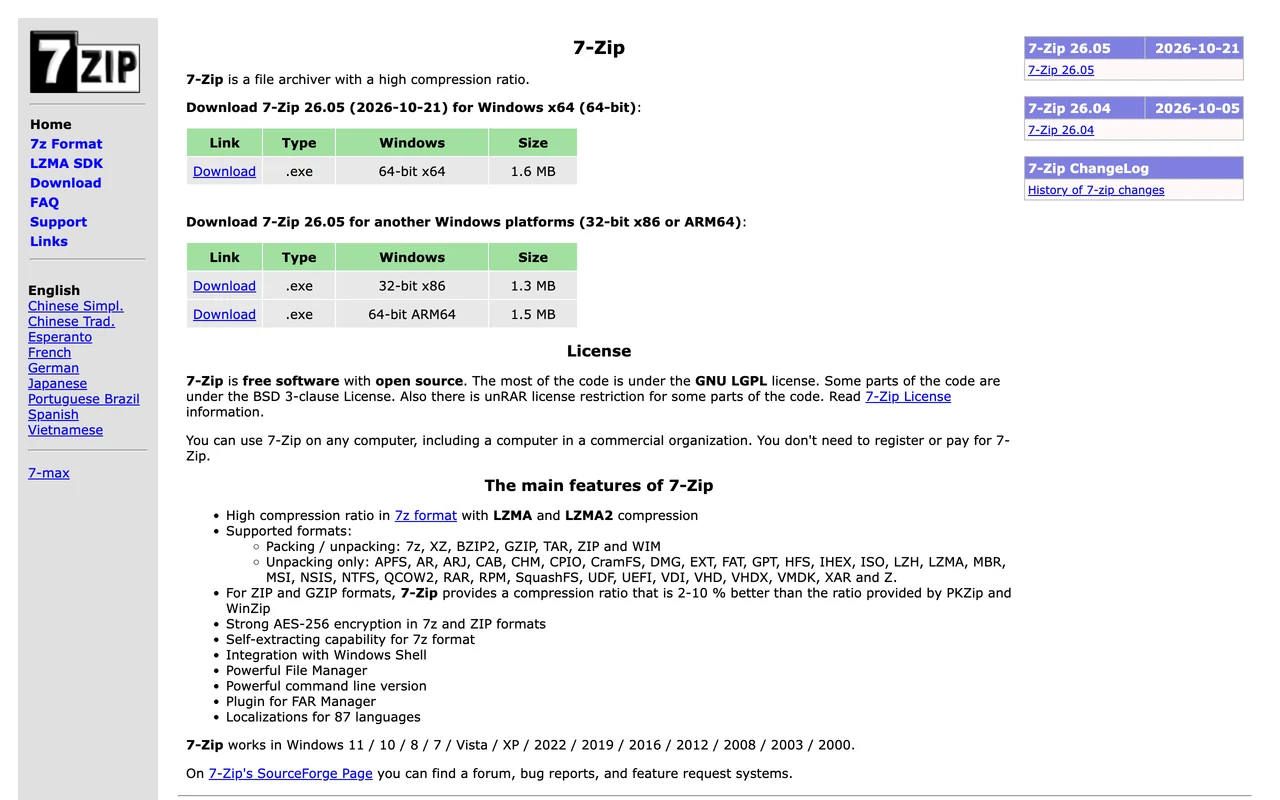
Official information permits personal and commercial use without registration or payment.
It creates ZIP/7z and other formats and extracts RAR, but does not create new RAR archives.
The 7z format supports Unicode names and AES-256 encryption. Confirm recipient application support before choosing a format and encryption method.
Getting started
- Select the download matching your operating system and CPU on the official page. Windows x64, ARM64 and 32-bit x86 are different choices. Windows installers also differ from official macOS/Linux console packages. A Windows .exe is not the Mac package; compare the System and Description columns.
- Separate the original-file location from the output-archive location. In Windows, select files in 7-Zip File Manager and use Add to archive to choose format and output name. Try a small set first to confirm the destination and extraction process instead of changing many unfamiliar options. Keep the originals.
- Check whether the recipient can open ZIP or 7z before choosing. Compatibility may matter more than 7z compression or encryption options. Already-compressed photos, videos or ZIP files may not shrink much when compressed again. Higher settings may also require more time or memory.
- Inspect received archive contents and extract to a new folder. Extracting directly over existing documents can overwrite matching names; read paths and prompts. Confirm any password with the sender. Successful extraction is not a reason to run an unexpected executable.
- Check the archive’s file list/count and actually open extracted documents. If Test or Extract reports CRC/Data Error, preserve the archive and compare its size with a fresh copy from the sender. For split archives, first check that all parts are together and none are missing. Consult the official recovery guide without assuming repair is guaranteed or overwriting the originals.
Before you use it
- Price: free. The official homepage and FAQ say registration and payment are not required for personal or commercial use. Redistribution of code or inclusion in another product has separate licensing considerations; consult the official license.
- The Windows graphical application and official macOS/Linux console distributions have different workflows. The preview is an actual Chrome capture of the official homepage, not a locally installed Windows GUI. Installation and execution on each operating system were not completed for this article.
- Not every file becomes smaller, and not every application opens every encrypted archive. Distinguish creation from extraction formats and check free space, password handling and recipient compatibility. Encryption does not replace malware checks or backups of originals.
 www.7-zip.org7-ZipA free program for creating ZIP/7z archives and extracting many formats. Choose separately between the Windows GUI and official macOS/Linux console packages. Open official page
 Sources consulted
Sources checked
Based on public documentation; not a full functional or security audit.