
OBS Studio: Record Your Screen and Set Up Live Streaming
Free, open-source software for recording or streaming scenes built from screen, window, game, webcam, and audio sources.
What can you do with it?
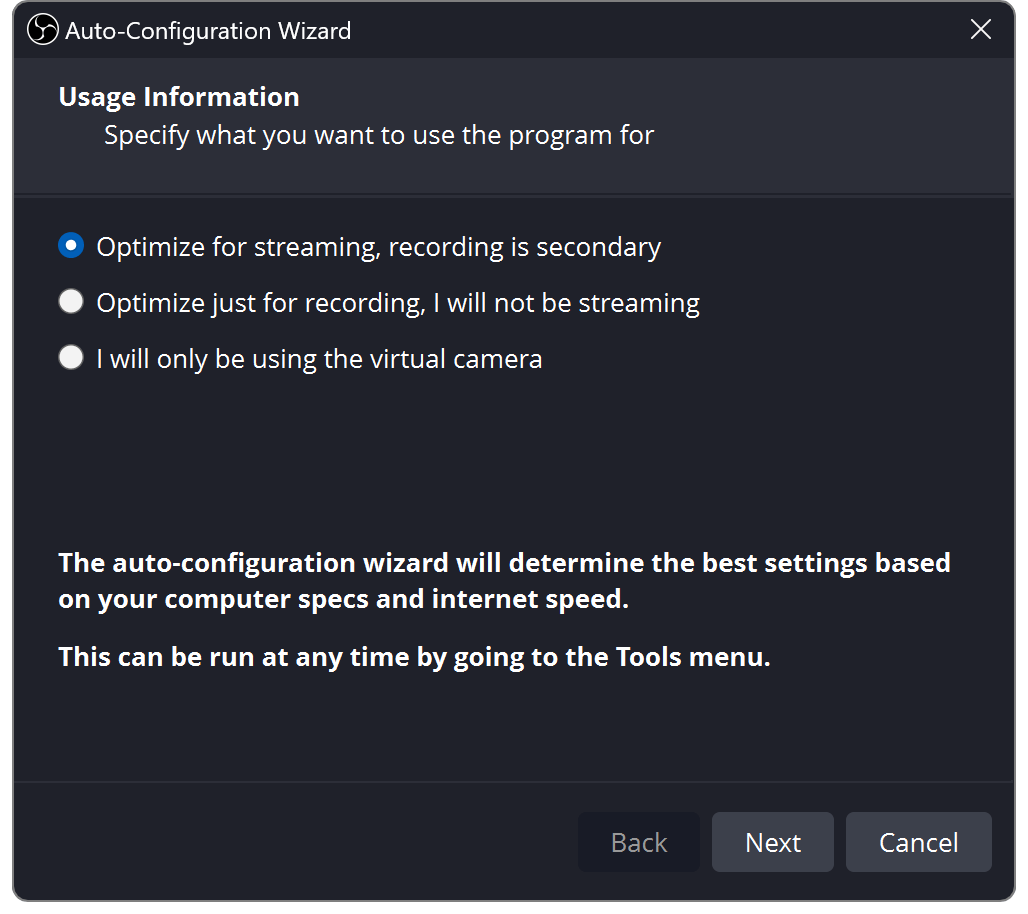
Check the official download page for an installer that matches your operating system and its requirements. Use the Auto-Configuration Wizard, create a scene, add display/window/game/webcam sources, and check the audio meters. Set a recording path and output settings, then make a short test recording and inspect the file.
Key features
Combine multiple video and audio sources into scenes, switch layouts, and use them for local recording or supported streaming services.
Getting started
- 1) Choose the build for your OS on the official page. 2) Run the wizard, create a scene, add sources, and check audio levels. 3) Set an output folder and quality, make a short test recording, and inspect the file. Live streaming may require a separate service and stream key.
Before you use it
- Capture methods and permissions vary by operating system and version. Streaming also depends on the platform and network; keep stream keys private and test before going live.
 obsproject.comOBS StudioFree, open-source software for recording or streaming scenes built from screen, window, game, webcam, and audio sources. Open official page
 Sources consulted
- OBS Studio download ↗
- OBS Studio Quick Start Guide ↗
- OBS Studio Sources Guide ↗
- OBS macOS Screen Capture Source ↗
Sources checked
Based on public documentation; not a full functional or security audit.