5 steps to back up files: keep photos and documents, then test recovery
Is cloud sync enough? Choose what to keep, make independent copies, schedule backups and check that you can actually restore a file.
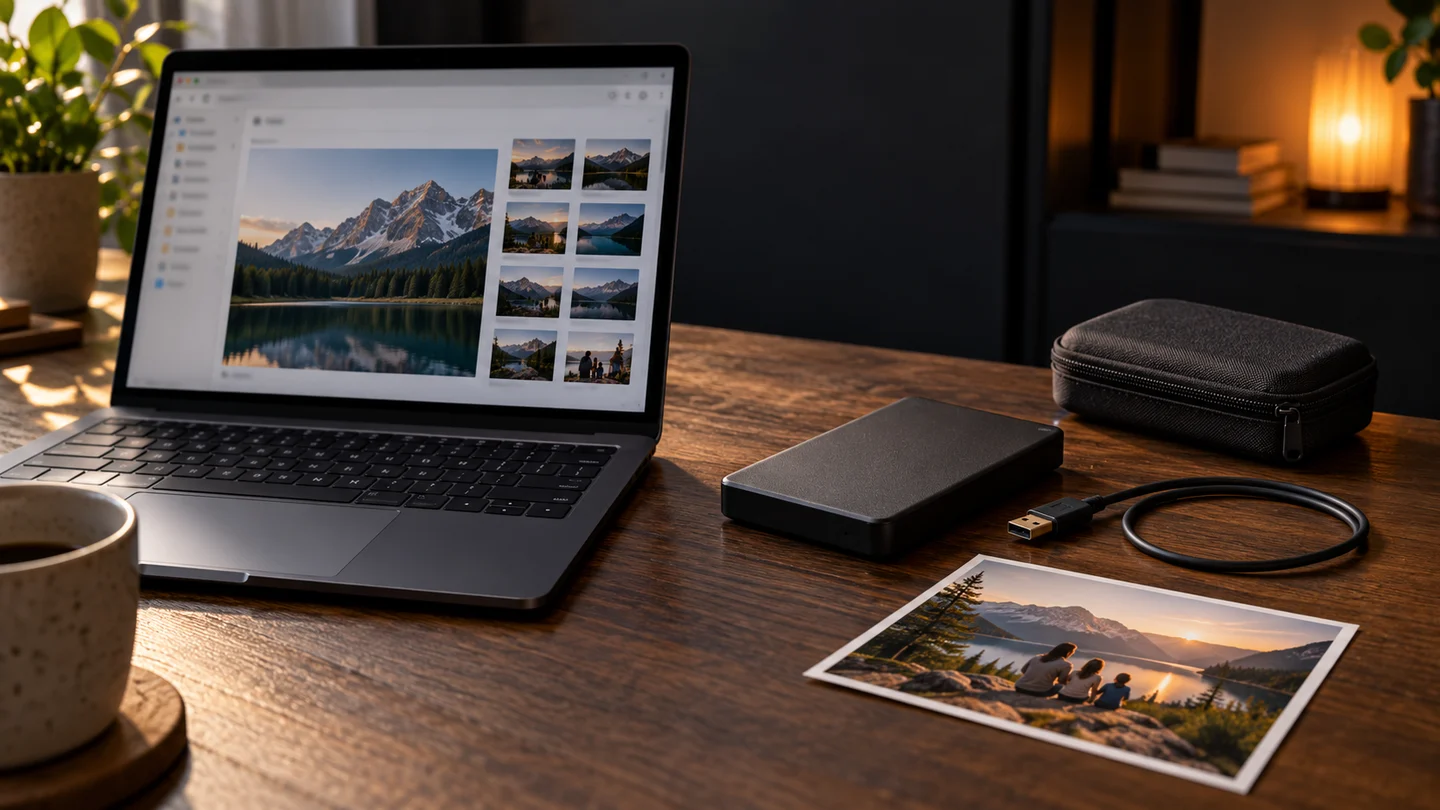
Seeing a photo on your phone and laptop does not necessarily mean you have two independent backups. A deletion can follow a synced account to other devices. Start with the files you cannot easily replace and decide where you would retrieve them if your usual device were unavailable.
Check what sync and backup can actually recover
Sync keeps files convenient to use across devices, but edits and deletions can travel with them. Seeing a file in the cloud does not prove you can return to its state before an accidental deletion. Check the service’s recycle bin, version retention and account access.
A backup keeps a copy you can return to after a problem. Backup tools also have exclusions, retention limits and automatic cleanup. Look beyond the product label: check which files are included, which dates are available and how you would restore them.
Choose the files you cannot easily replace
List family photos, documents you wrote and current projects first. For a video project, include the linked footage, audio and images, not just the project file. Separating personal work from installers you can download again helps you choose what to protect first.
Open the selected folders and check file counts and recent changes. An online-only cloud item can appear by name without its contents being downloaded. Confirm that your chosen backup method includes the contents. Try one important folder from selection through to a completed copy before expanding the job.
Keep an independent copy outside the same disk
Copying Documents into another folder on the same laptop can help with an accidental overwrite, but both folders still depend on one disk. Keep a copy on a separate device such as an external drive. Consider another location so one incident does not affect every copy.
The 3-2-1 guideline suggests three copies including the original, two kinds of storage media and one copy elsewhere. A working device, an external drive and a separate location or suitable cloud backup can serve different roles. Check whether a single deletion, lost account or device failure could still affect them together.
Schedule backups and check the last successful run
A folder edited daily needs a different schedule from photos added occasionally. Set included and excluded folders and a schedule that fits your work, then watch the first run finish. Later, check the last successful date, free space and failure notices. A disconnected drive may mean a scheduled job never ran.
A copy that overwrites the latest files is different from a backup that keeps older versions. Review retention and cleanup rules. After a backup completes, safely eject a drive that you intend to store disconnected. Review account protection and encryption options without assuming one product prevents every kind of loss.
Test recovery without disturbing the original
Recover a photo, a document and a project with its linked files into a different folder. If the tool restores only to the original location, preserve a separate copy or follow its official instructions to choose a safe destination before overwriting anything. Do not delete originals just to test recovery. Open the restored files in their actual apps.
Check contents, dates and linked material. An encrypted backup may be unusable without its password or recovery key: do not keep the only key inside that same backup, or expose it in a shared note or link. Record the account, required apps, drive connection and test date so you can repeat the recovery on another device.
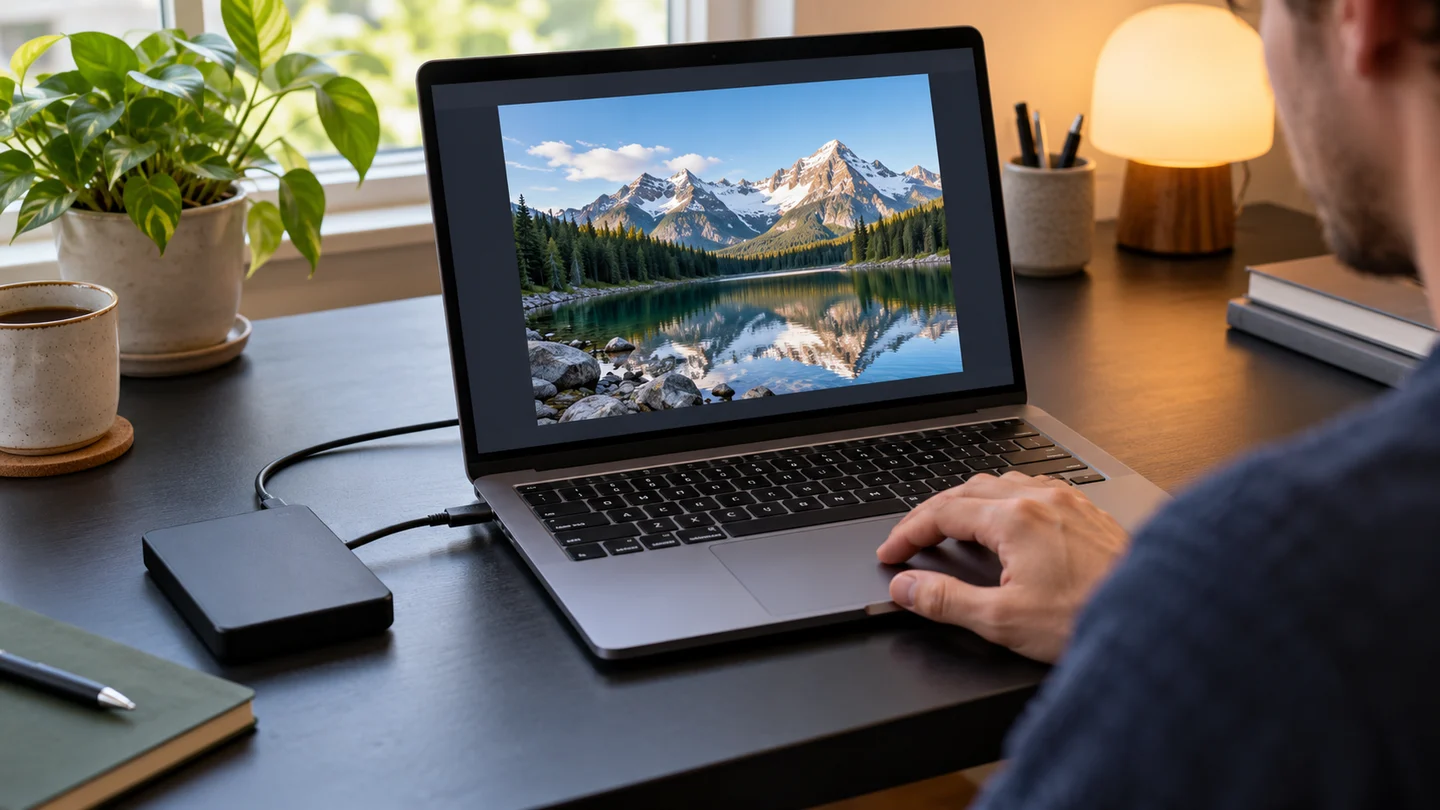
Start today with one important folder and restore one file from its copy. Record the backup location and the date you tested recovery. Review the selection when you change accounts or start saving work in a new folder.
Tools
Sources
Based on public documentation; not a full functional or security audit.