5 video and audio tools: choose by recording, conversion, editing or playback
Compare OBS Studio, HandBrake, Audacity, EZGIF and VLC by the output you need.
Start with the result rather than installing every tool. Recording a screen, converting an existing video, editing speech and creating a GIF are different tasks. This is a workflow comparison, not a speed ranking. Check installation requirements, where files are processed, output formats and limitations. A free website is not automatically suitable for sensitive recordings.
Compare 5 tools
| Tools | Standout feature | Pricing |
|---|---|---|
| OBS Studio | Combine multiple video and audio sources into scenes, switch layouts, and use them for local recording or supported streaming services. | Free |
| HandBrake | Free open-source local conversion and job queues on Windows, macOS and Linux. | Free |
| Audacity | Useful for trimming silence, editing podcasts and reducing steady background noise. | Free |
| EZGIF | Create short explanatory animations from longer videos. | Free |
| VLC | Play files, discs, and streams | Free |
OBS Studio
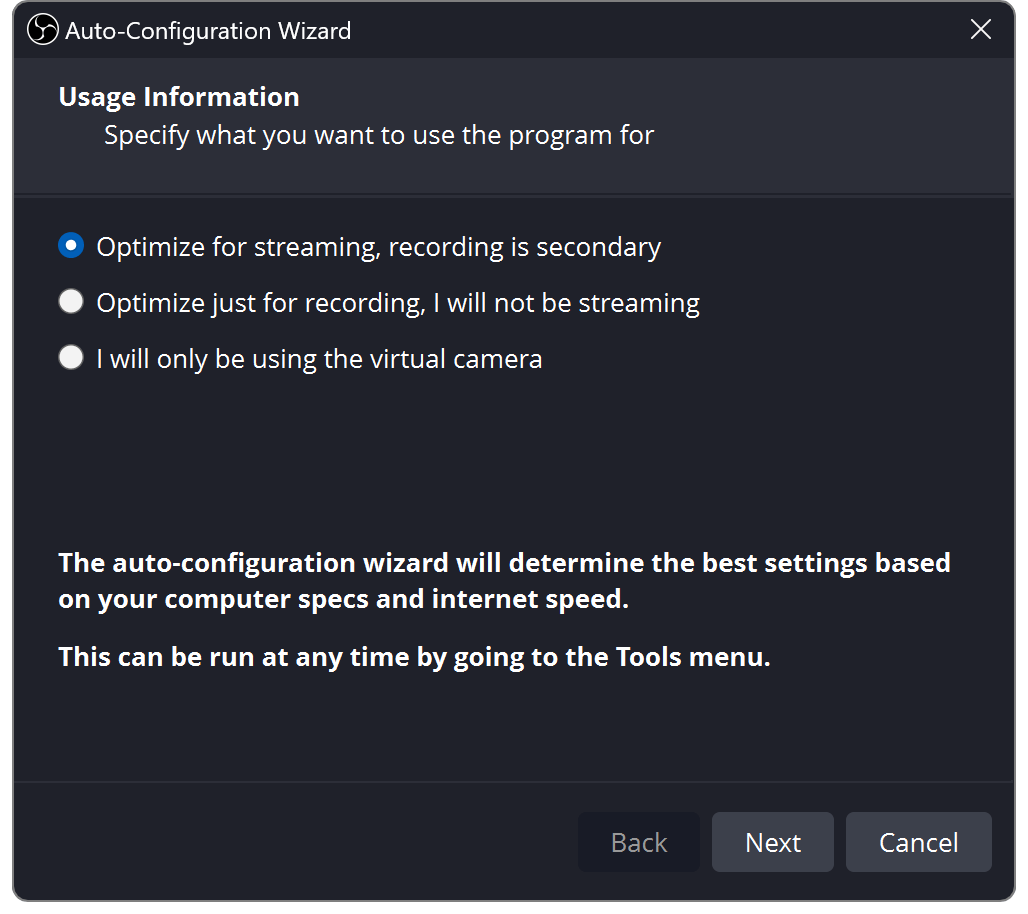
Free, open-source software for recording or streaming scenes built from screen, window, game, webcam, and audio sources.
Advantages
- Combine multiple video and audio sources into scenes, switch layouts, and use them for local recording or supported streaming services.
Pricing
- Free(Official site · checked Oct 23, 2026)
HandBrake
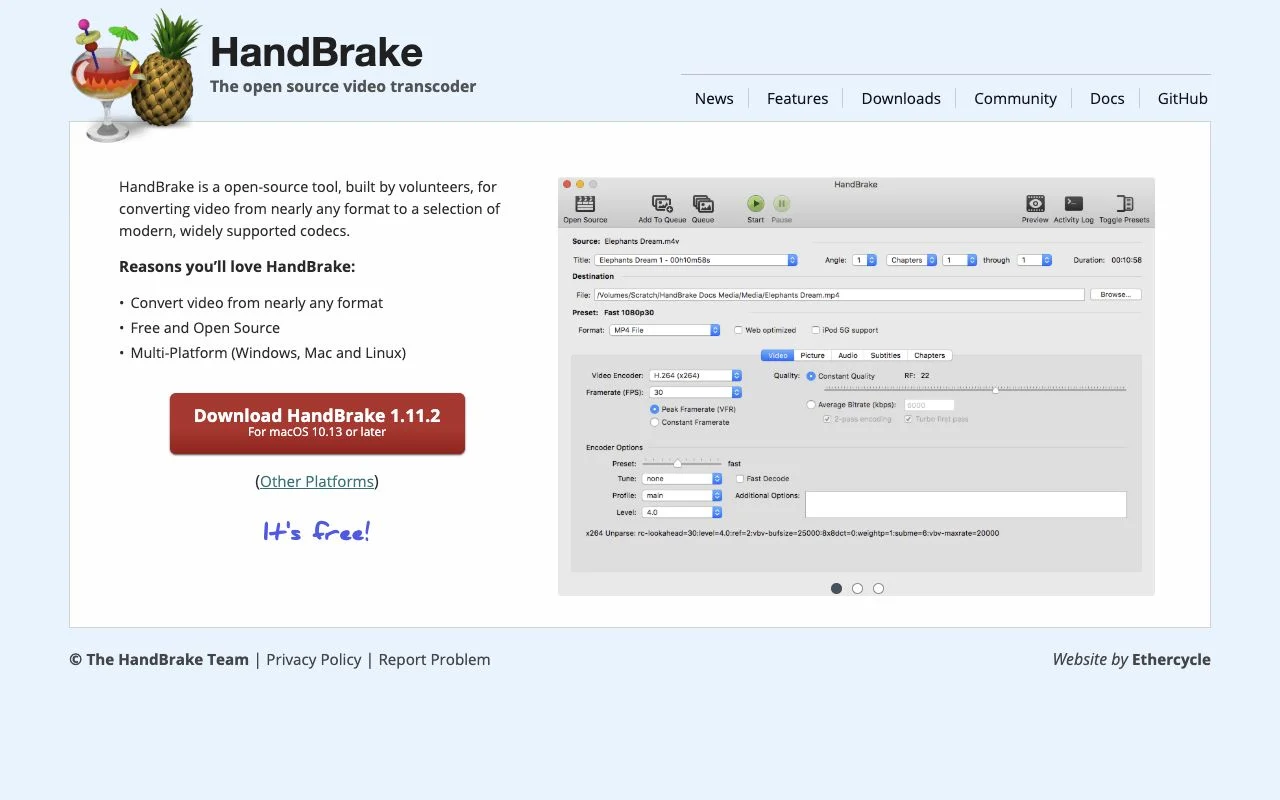
An installable tool to convert your videos to MP4, MKV or WebM and adjust quality and dimensions.
Advantages
- Free open-source local conversion and job queues on Windows, macOS and Linux.
Pricing
- Free(Official site · checked Oct 23, 2026)
Audacity
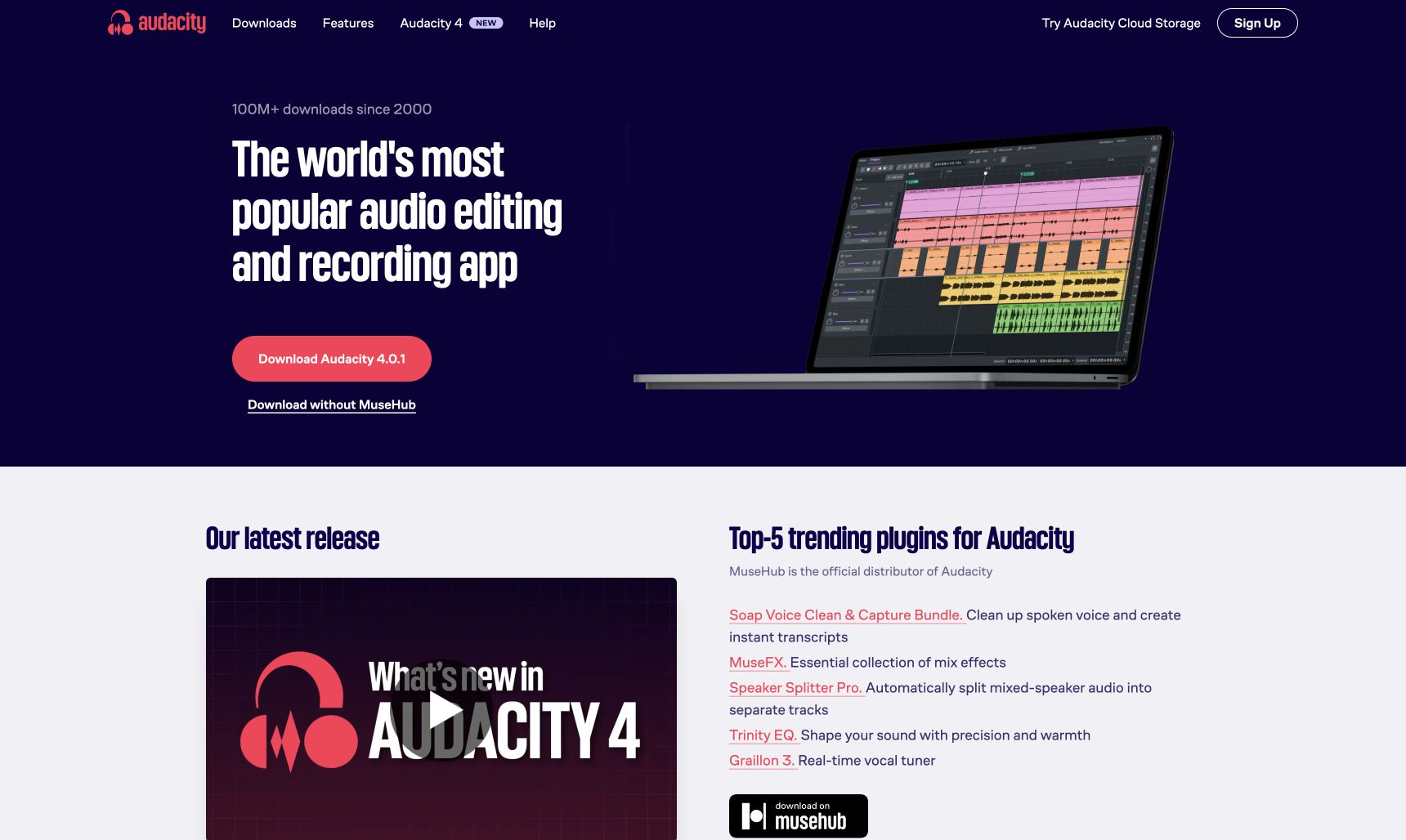
A free, open-source editor for cutting voice or music, adjusting volume and exporting audio files.
Advantages
- Useful for trimming silence, editing podcasts and reducing steady background noise.
Pricing
- Free(For the application itself. Separate plugins and external services may have different terms. Official site · checked Oct 23, 2026)
EZGIF
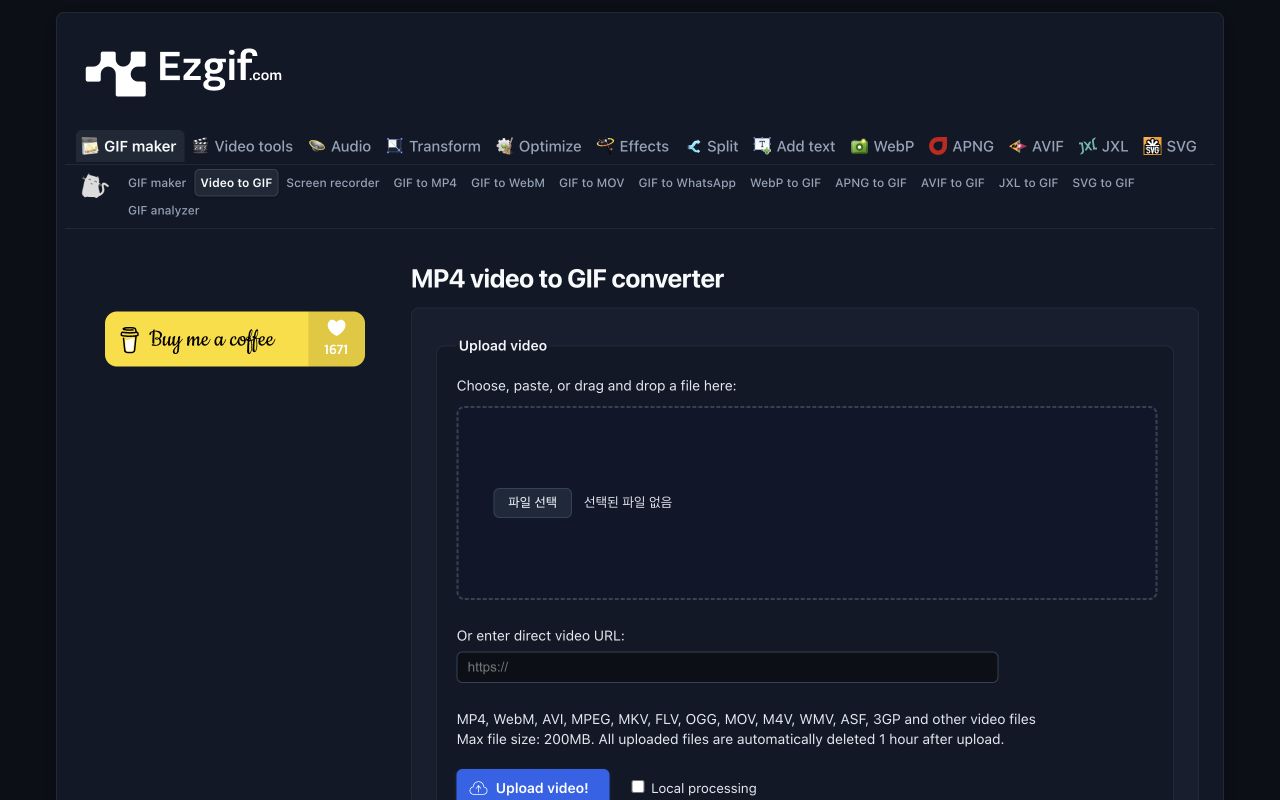
Convert a video segment to GIF and adjust its dimensions, frame rate and file size.
Advantages
- Create short explanatory animations from longer videos.
Pricing
- Free(Official site · checked Oct 23, 2026)
VLC
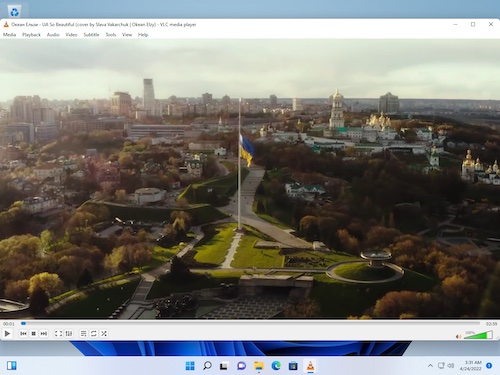
VLC is VideoLAN's free, open-source media player for most files, discs, and network streams.
Advantages
- Play files, discs, and streams
- Broad support for common media codecs
Pricing
- Free(Official site · checked Oct 23, 2026)
Choose by task
Use OBS for capture, HandBrake for compatible video output, Audacity for audio editing and EZGIF for a short animated illustration. Reopen the finished file in a player such as VLC. Keep the original, an editable working copy and the distribution file separate; review the individual guides before choosing settings.
Sources
Based on public documentation; not a full functional or security audit.
- OBS Studio download ↗
- OBS Studio Quick Start Guide ↗
- OBS Studio Sources Guide ↗
- OBS macOS Screen Capture Source ↗
- HandBrake ↗
- HandBrake documentation ↗
- Adjusting quality ↗
- Audacity ↗
- Editing audio ↗
- Noise Reduction ↗
- Recording your voice with a microphone ↗
- Video to GIF ↗
- Privacy policy ↗
- GIF tools help / FAQ ↗
- Official VLC downloads ↗
- VLC features ↗
- VLC for Windows ↗
- VLC for macOS ↗
- VLC for Ubuntu ↗
- VLC desktop playback documentation ↗